

Backgrounds for Teams video calls
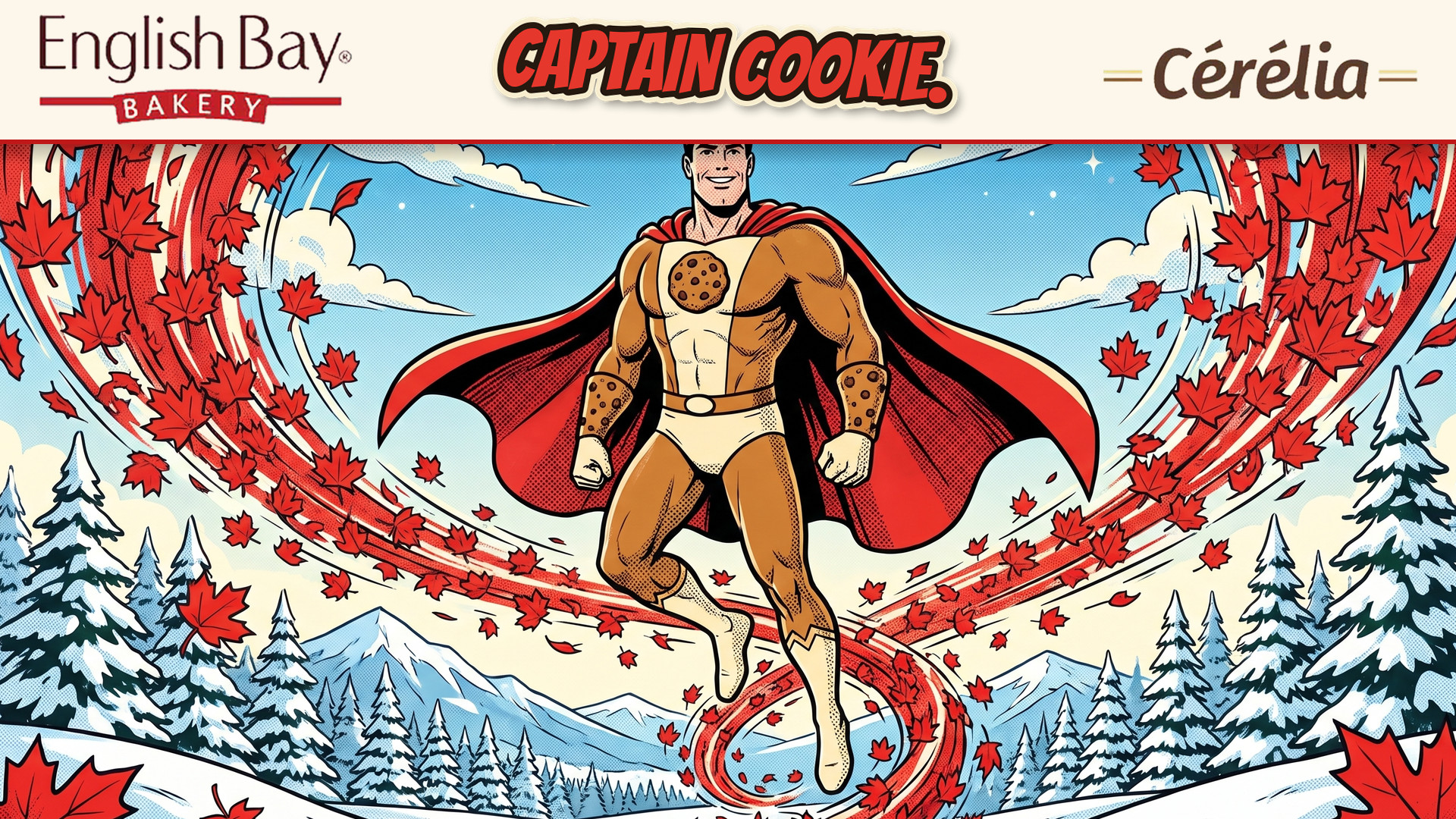
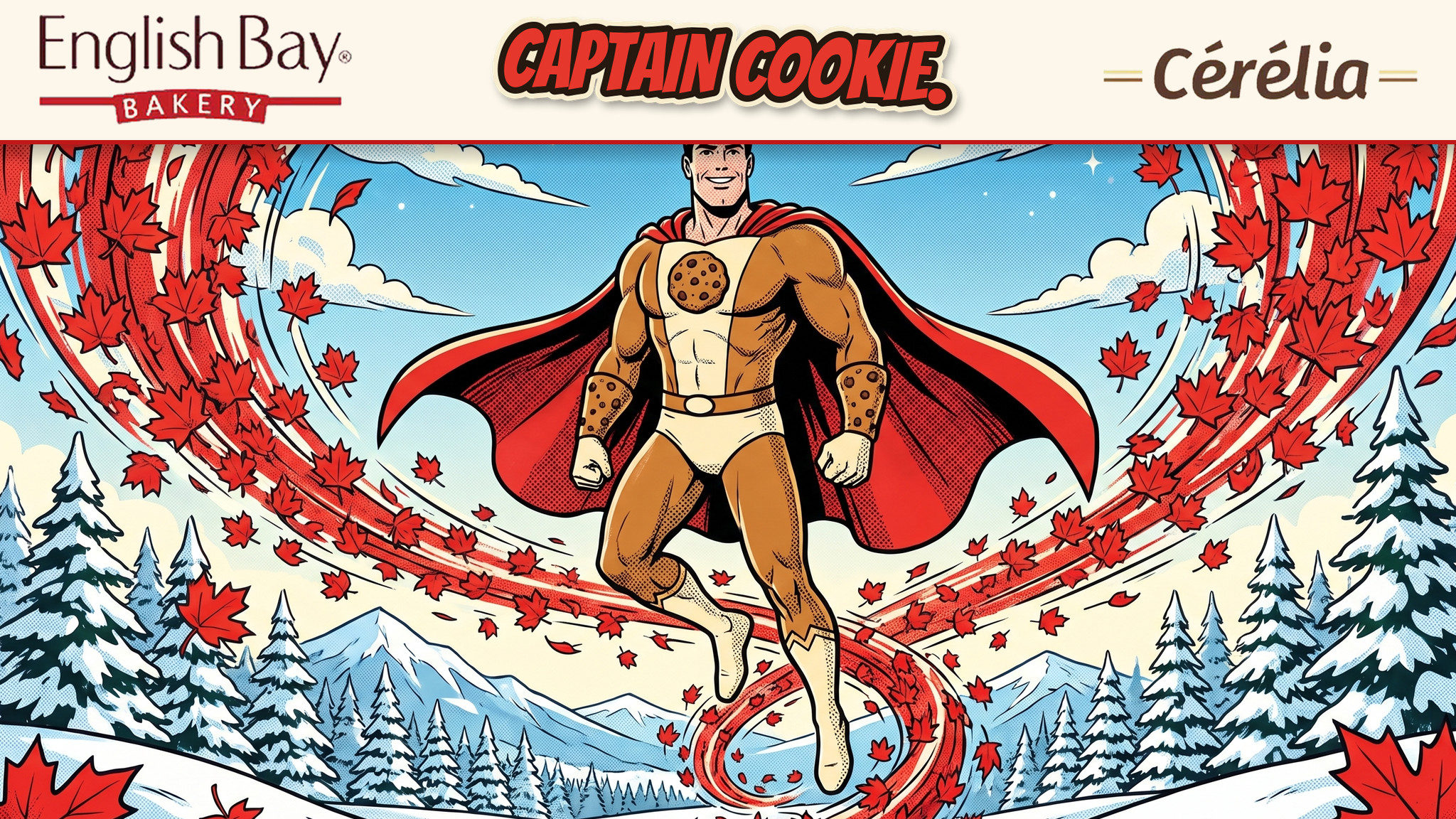
A picture that shows behind you on a Microsoft Teams call, instead of your room. Pick one, download it, then follow the steps.
Pick a background
 1. Captain Cookie in the snow
 2. Captain Cookie, maple leaf storm
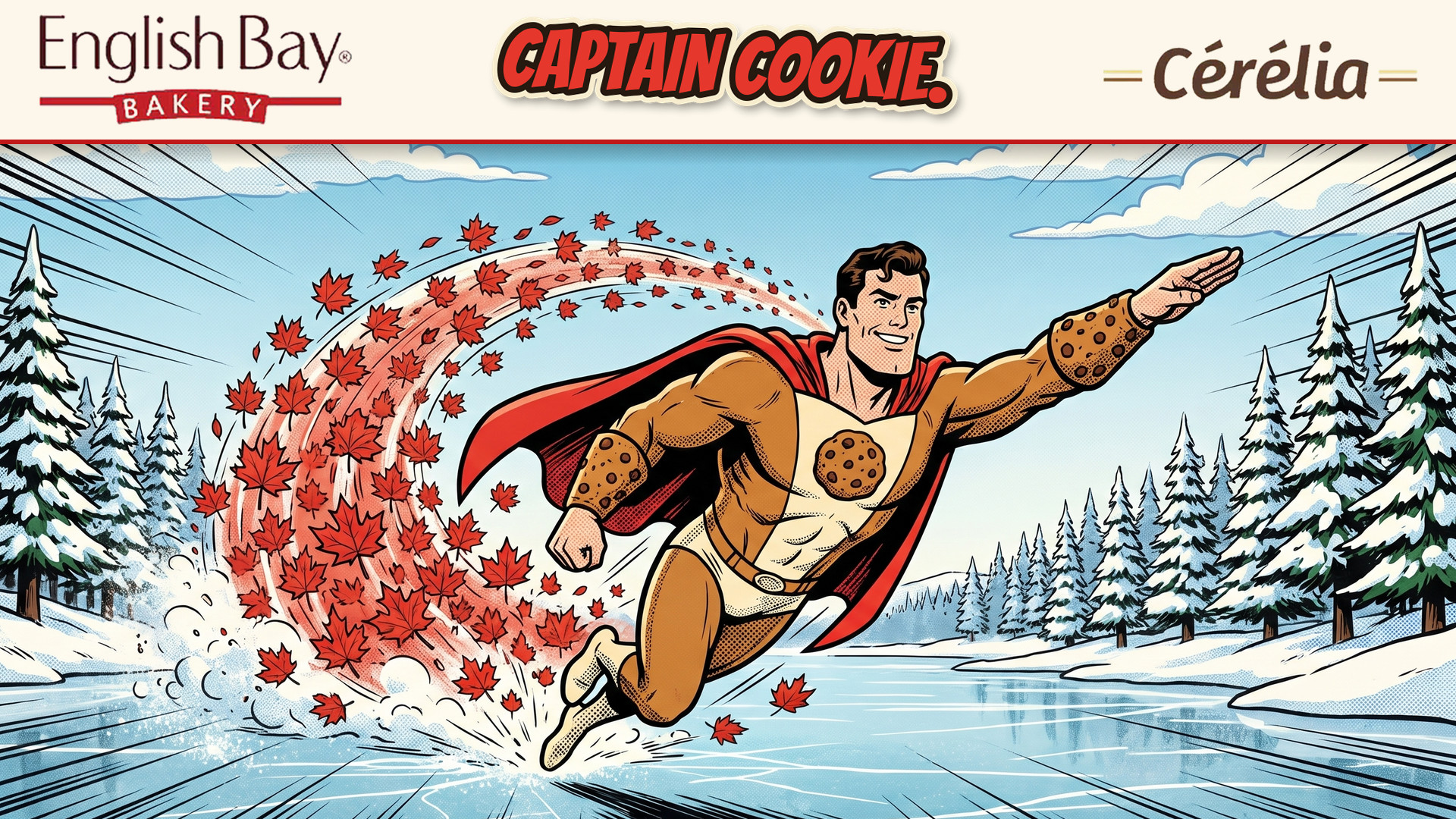
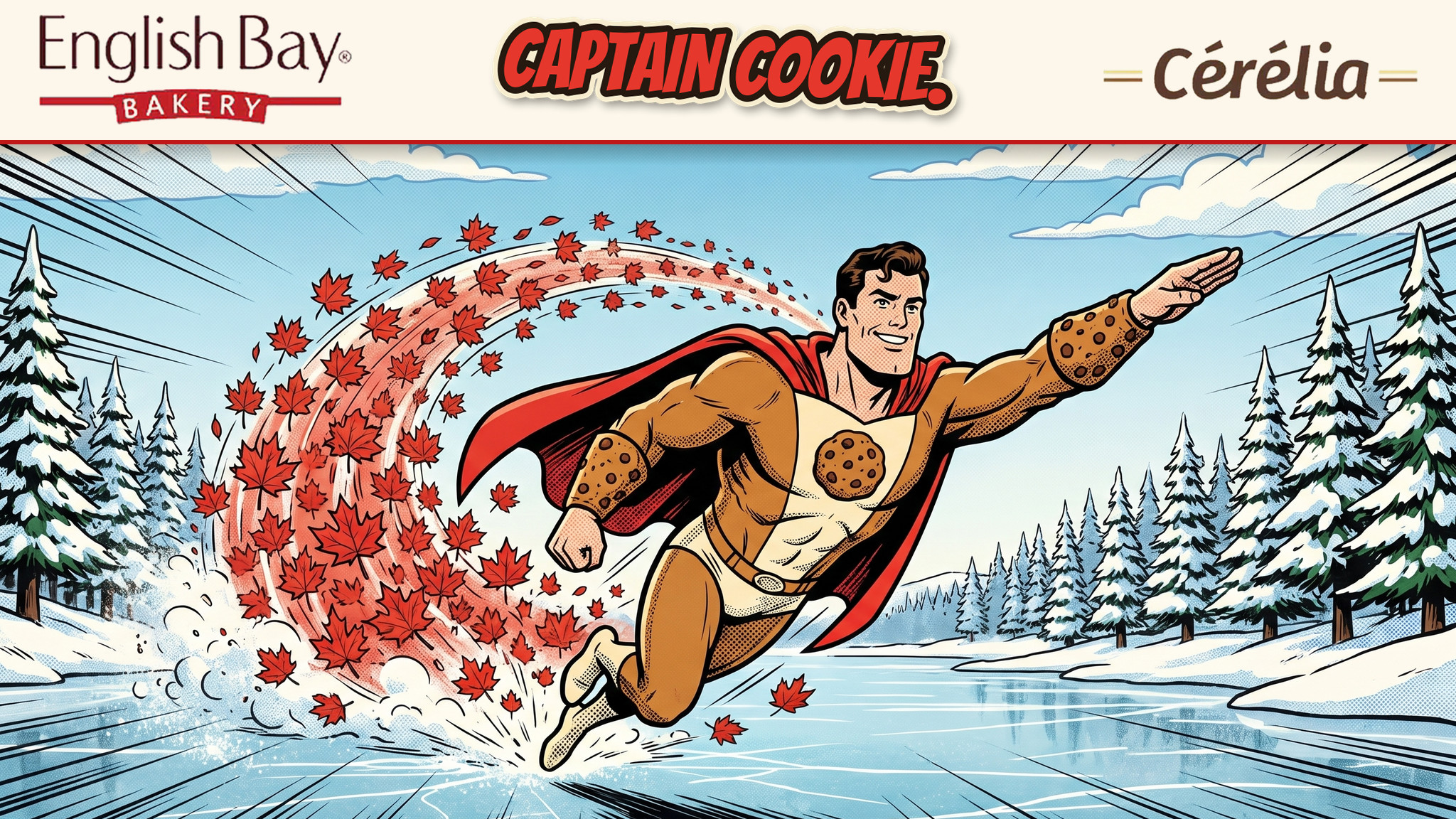
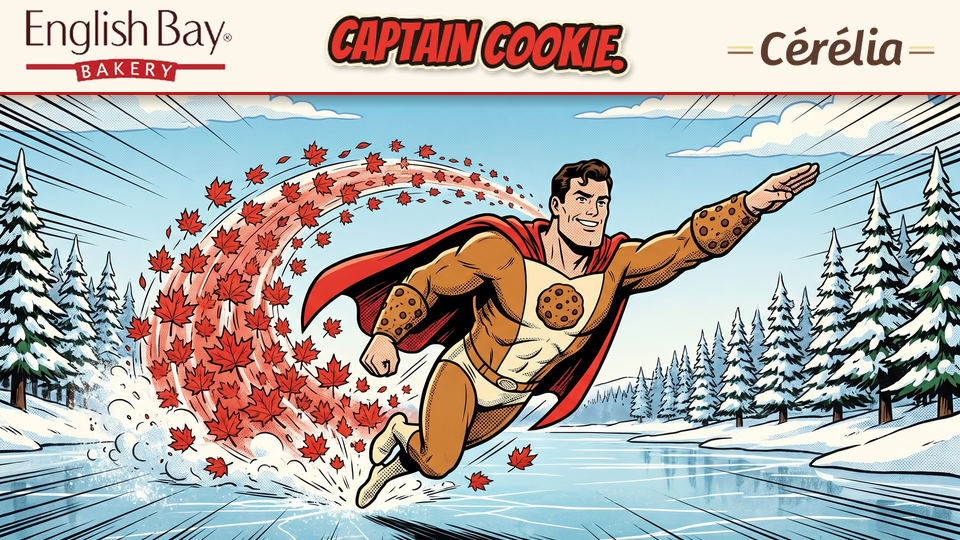 3. Captain Cookie flying over the iceDownload this oneLarger version for big screens (2048 × 1152) →
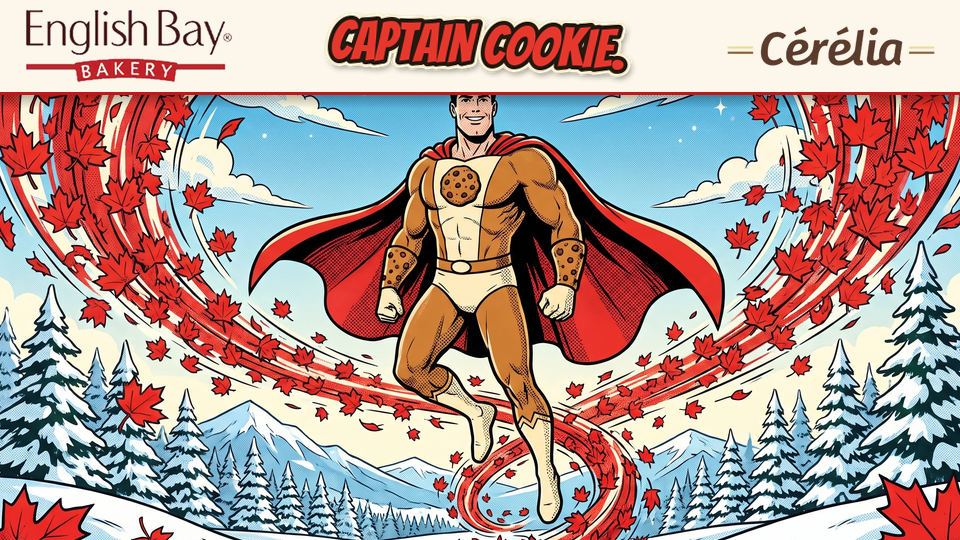 4. Captain Cookie, leaf cyclone
 5. Cookies with a clear centre (you stay in focus)Download this oneLarger version for big screens (2048 × 1152) →
 6. Simple cream pattern (very quiet)
 7. Rainbow sprinkle burst
 8. Cookie cereal and milk
 9. Cookie stacks at the bakery
 10. Ice cream cookie sandwiches
 11. Cookie cake with candles

















How to add it to Teams
1
Download the background and save it to your desktop so it is easy to find.
2
Open Microsoft Teams and join or start a meeting.
3
Turn your camera on.
4
Click the three dots (it says More), then click Video effects and settings.
5
Under Backgrounds, click Add new.
6
Choose the file you saved on your desktop. The background appears behind you.
7
Back to the main pageIf Teams says no, call Money Mango Marketing: Ryder at 647-467-3653 or Ben at 647-278-8027. One of them will do it with you on a screen share.